

Widget Implementation Guide
Integrate the Elephany Q&A widget on your site in under 5 minutes. This guide covers everything from adding the script to verifying the integration.
Before You Begin
Section titled “Before You Begin”You’ll need:
- Your API key (provided by the Elephany team during onboarding)
- Access to your site’s HTML templates or CMS theme editor
Step 1: Add the Widget Script
Section titled “Step 1: Add the Widget Script”Paste the following snippet inside the <head> tag of your page template.
Replace YOUR_API_KEY with the key provided to you.
<script> window.BlogQAWidget = { config: { apiBaseUrl: "https://fyi-widget-api.elephany.pro/api/v1", apiKey: "YOUR_API_KEY" } };</script><link rel="stylesheet" href="https://assets.elephany.pro/widget.css"><script async src="https://assets.elephany.pro/widget.js"></script>Step 2: Place the Widget Containers
Section titled “Step 2: Place the Widget Containers”The Elephany widget ships with two display formats: Cards and Pills. Drop each container div wherever you’d like it to appear within your page content.
The Cards format displays questions as visually distinct, swipeable cards with pastel backgrounds.
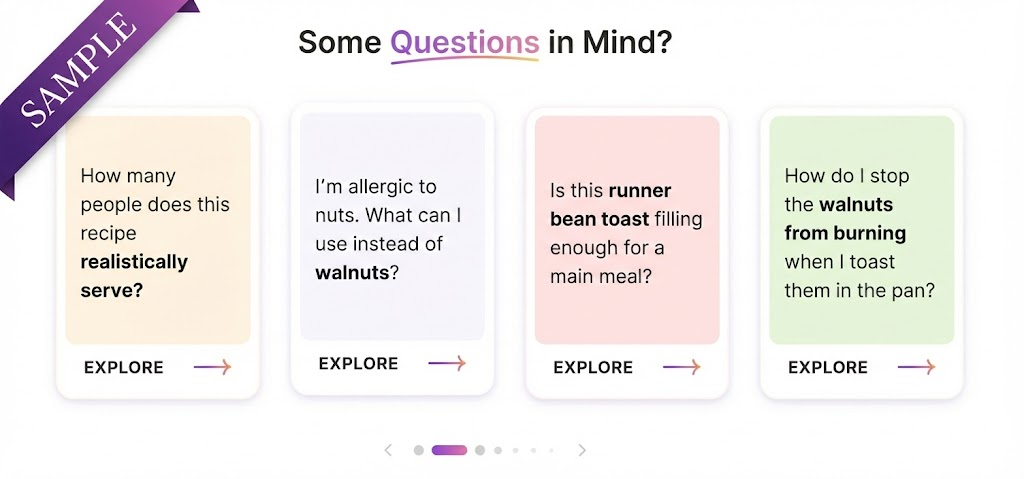
<div class="widget-container"> <div id="elephany-cards"></div></div>The Pills format presents questions as compact, pill-shaped rows, ideal for denser content pages.
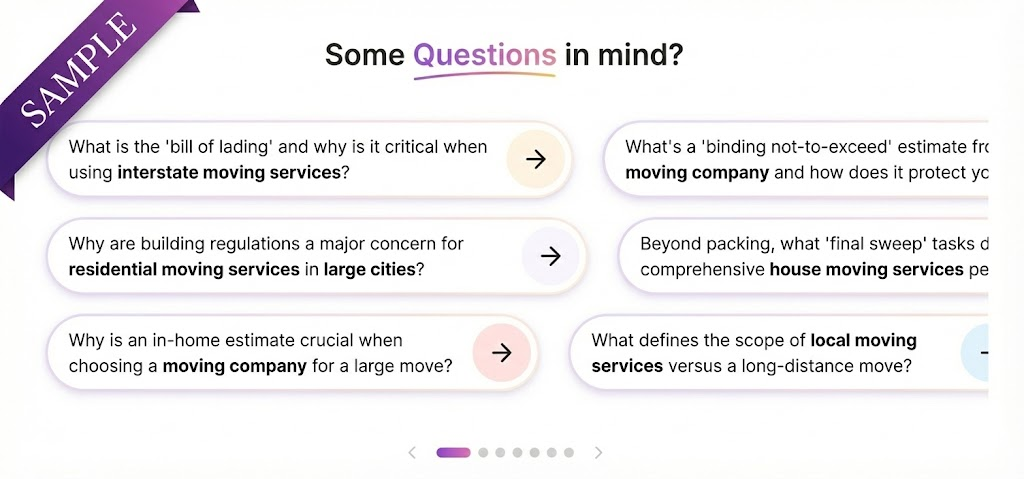
<div class="widget-container"> <div id="elephany-pills"></div></div>You can use one or both formats depending on your layout. Each container is independent and will render on its own.
Step 3: Choose the Right Placement
Section titled “Step 3: Choose the Right Placement”Where you place the widget has a direct impact on engagement. Here’s what we recommend:
0% ┬ Page Start │ 25% ├── 🃏 CARDS widget │ Catches readers before they bounce │ 50% ├── 💊 PILLS widget │ Re-engages readers mid-scroll │100% ┴ FooterPlacement Tips
Section titled “Placement Tips”- Within the main content area. The widget performs best when it sits alongside the article or post body, not in sidebars, footers, or overlay panels.
- Away from ads and media. Give the widget visual breathing room. Placing it too close to ad units or large images reduces its visibility and click-through.
- First instance near the top. Positioning the Cards widget roughly 25% down the page catches readers who are still engaged but might otherwise bounce.
- Second instance mid-page. The Pills widget around the 50% mark serves as a re-engagement touchpoint for readers who scroll deeper.
Verification
Section titled “Verification”Once the snippet is live, confirm the integration:
- Load a page where the widget is placed.
- Check that the widget renders in the expected position(s).
- Click on a question and verify that a response loads.
If the widget doesn’t appear, open your browser’s developer console (F12 > Console tab) and look for any errors related to elephany. Common issues include the API key being incorrect or the container div IDs being misspelled.
CMS-Specific Notes
Section titled “CMS-Specific Notes”| Platform | Where to add the <head> snippet | Where to add the containers |
|---|---|---|
| WordPress | Theme’s header.php or via a plugin like Insert Headers and Footers | Directly in the post/page editor (HTML mode) or via a theme template |
| Blogger | Theme > Edit HTML > inside <head> | Post editor (HTML view) or Layout > Add a Gadget > HTML/JavaScript |
| Custom / Static | Directly in your HTML <head> | Directly in the page body |
For other platforms or if you use a tag manager (e.g., Google Tag Manager), reach out to us and we’ll walk you through it.
Support
Section titled “Support”If you run into any issues during implementation, reach out to us at contact@elephany.ai. We’re happy to help.